Amorum
Vendor Guide
Everything you need to know to get the most out of Amorum.
Your Dashboard
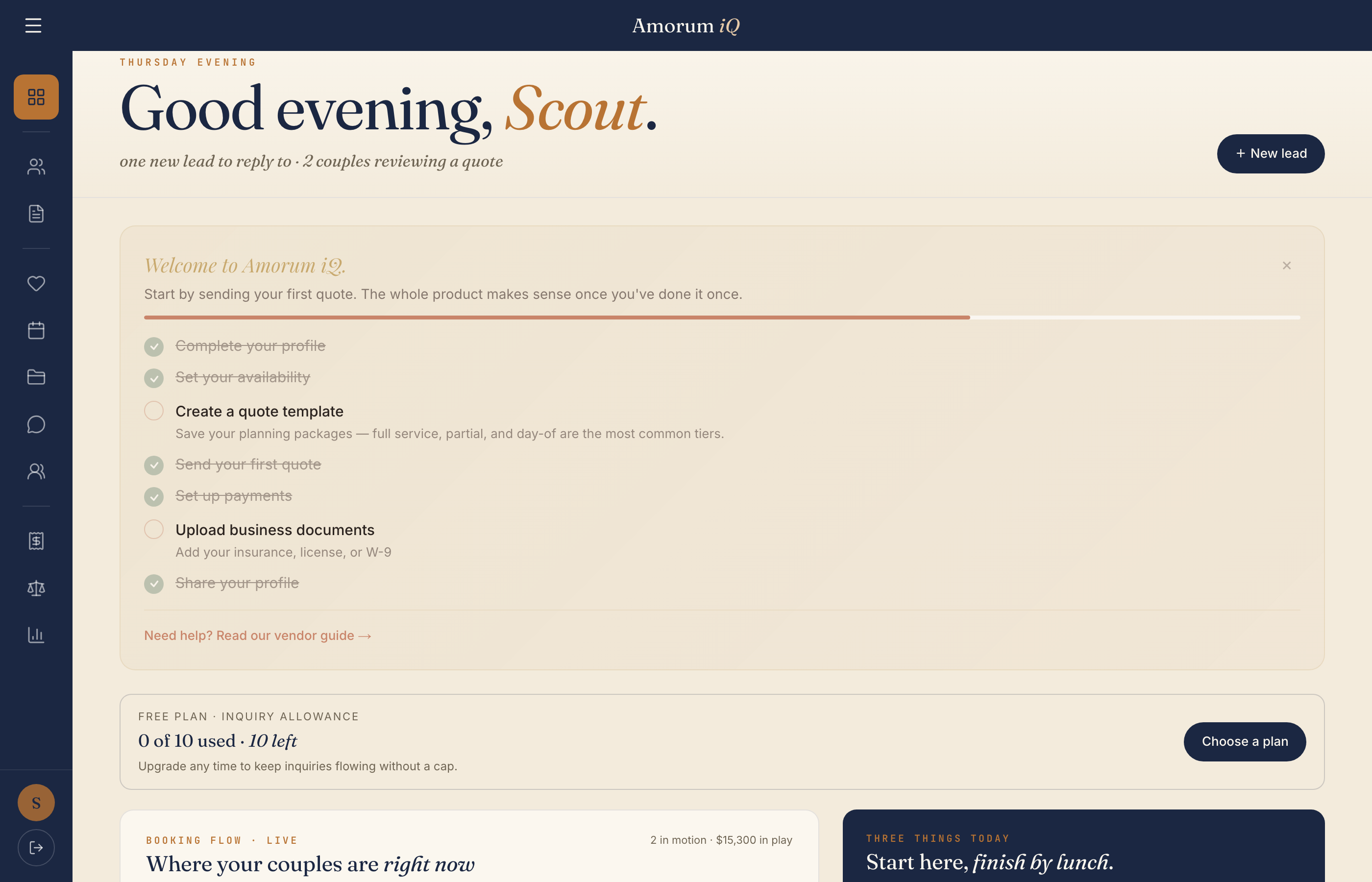
Your command center. The dashboard greets you by name with a time-of-day greeting and shows your next upcoming wedding, smart nudges (expiring quotes, unread messages, new leads), this month’s revenue snapshot, and an onboarding checklist if you’re still getting set up. Everything that needs your attention is one click away.
Your Profile
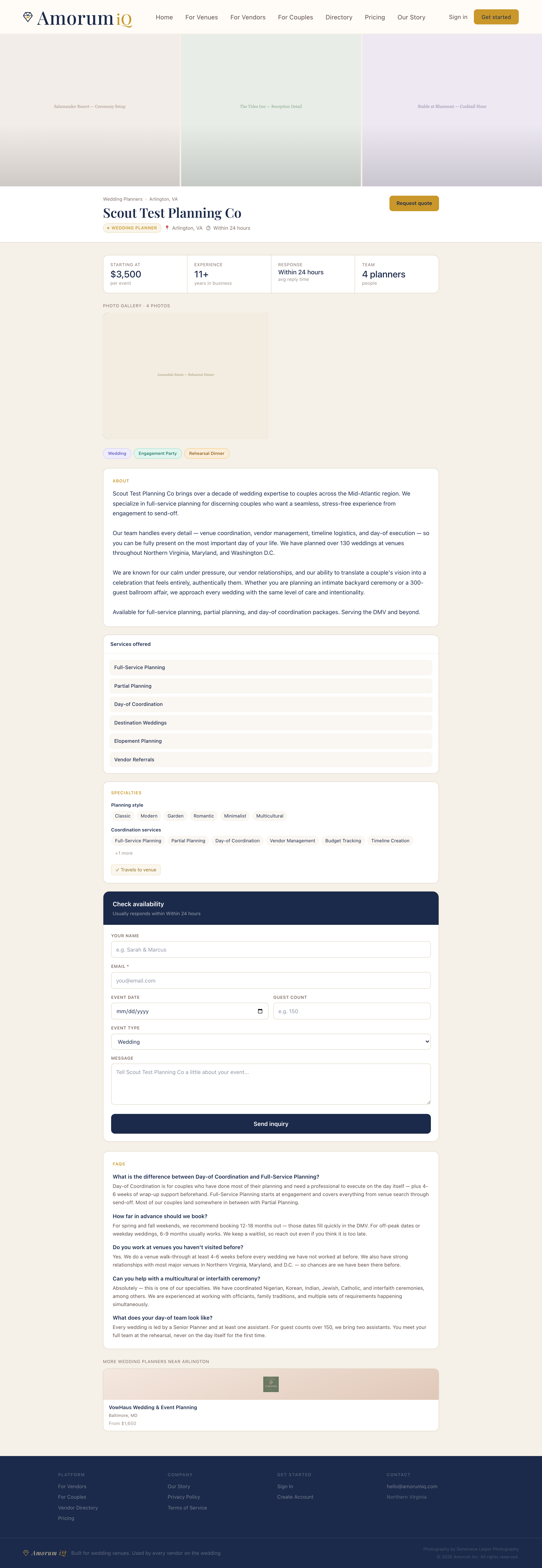
Your profile is your first impression. Upload your logo, add a compelling bio, set your starting price, and list your services. Add photos to your gallery and set a cover image — this is what shows on your card in the vendor directory. A complete profile helps couples find and trust you.
Dashboard Themes
Personalize your workspace with one of six color themes — Navy & Gold, Charcoal & Copper, Slate & Teal, Forest & Cream, Plum & Rose, or Midnight & Silver. Pick one in Settings > Dashboard Theme and the entire interface (sidebar, accents, hero cards) updates instantly to match.
Weddings (Bookings Board)
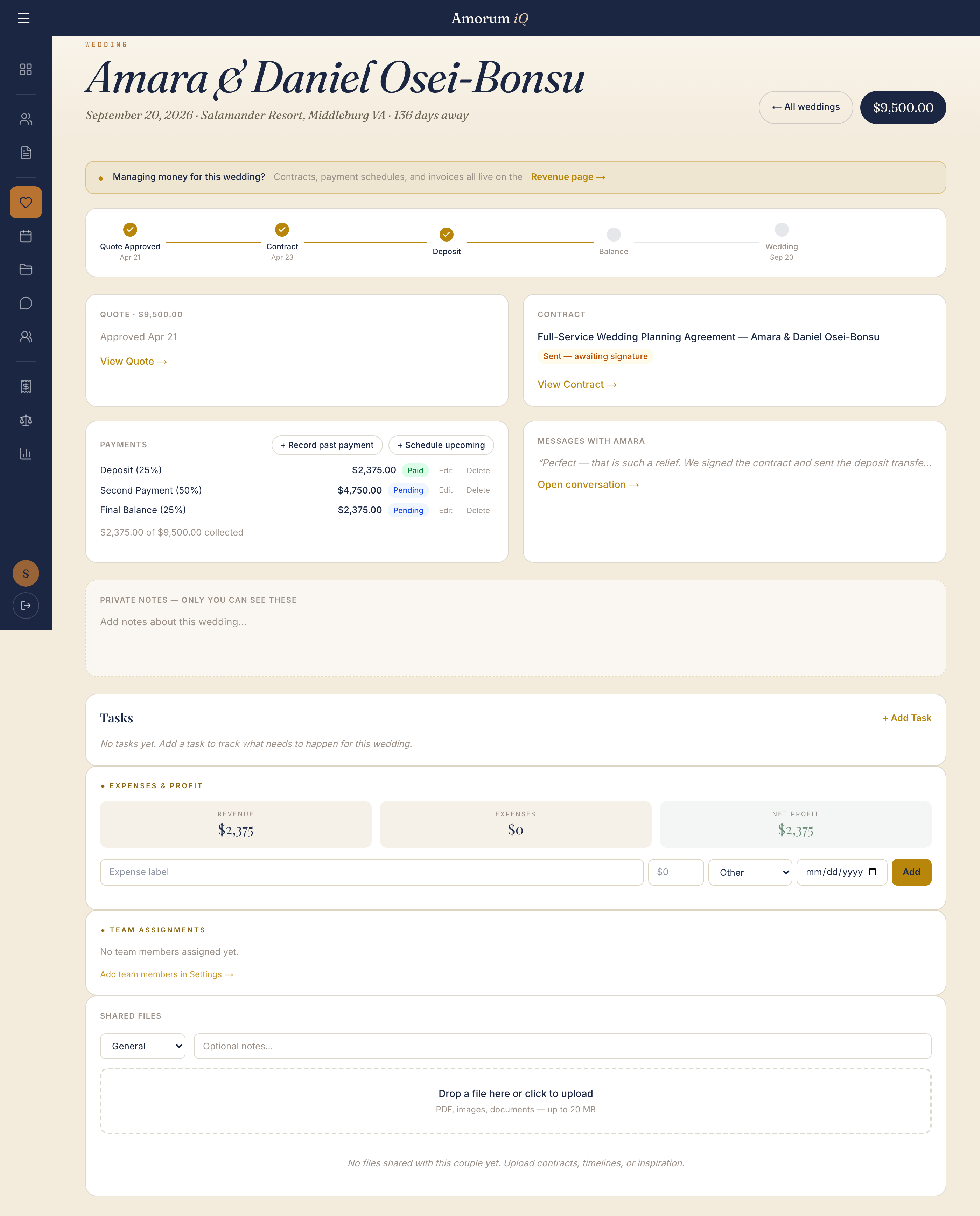
Your Weddings page shows every booked wedding sorted by date — closest first. Each card shows the couple, wedding date, contract status, payment status, and the next action you need to take. Use the "+ Add Wedding" button to manually log a wedding from outside Amorum, or use CSV upload to import a batch of existing bookings (none of these count toward your subscription tier limits during your import grace period).
Setting Availability
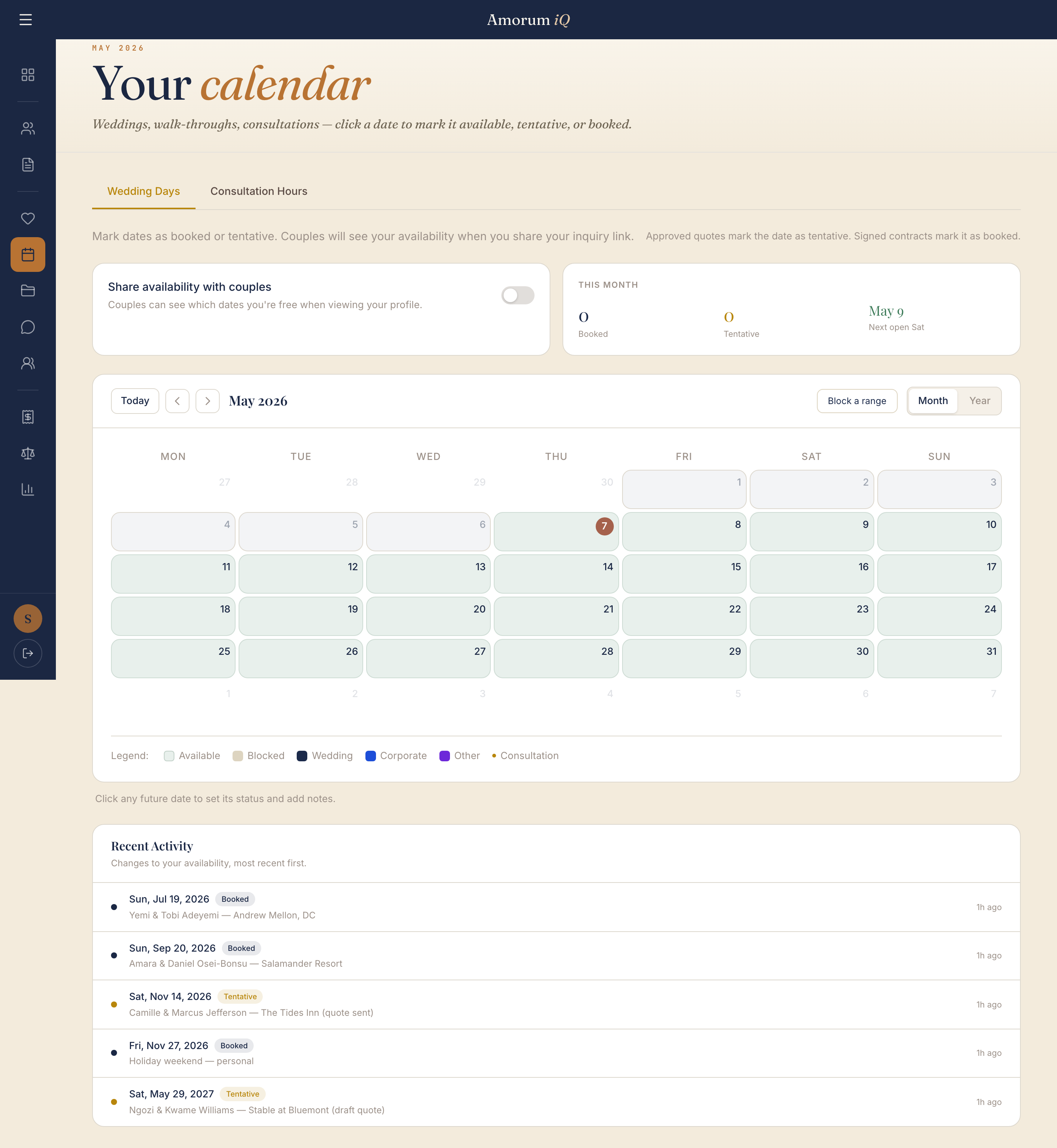
Mark your calendar with available, booked, and tentative dates. Use the year view to see your heatmap — a visual breakdown of how booked each month is by weekend percentage. You control whether couples can see your availability: the "Share availability with couples" toggle is off by default. Turn it on when you’re ready, and couples browsing your profile can check which dates you’re free.
Lead Intake Form
Every vendor gets a shareable inquiry form at /i/your-business-name. Put this link on your website, Instagram bio, or anywhere couples find you. When someone submits the form, the lead appears instantly in your Leads page and you get an email notification. You also have a webhook URL in Settings for capturing leads from external platforms like The Knot, Wix, or Zapier.
Quotes & Templates
Build reusable quote templates with your standard packages, line items, optional add-ons, and percentage fees. When a new inquiry comes in, load a template and customize it in minutes. Set a deposit amount (by percentage or custom dollar amount) with a due date. Add event-specific details and a personal note — couples tell us this is what makes them choose one vendor over another. The couple receives an email with a PDF attachment.
Tracking Quotes
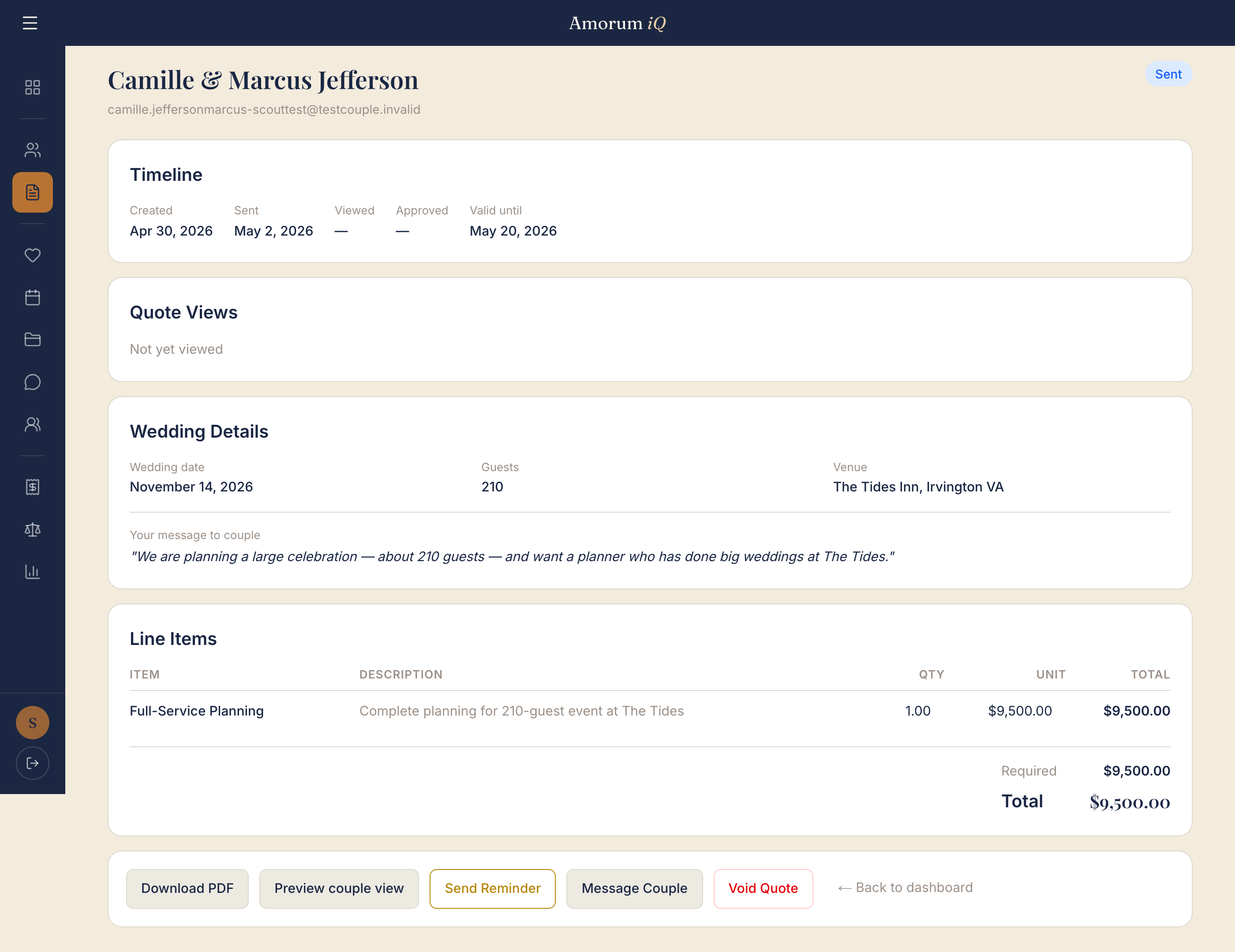
See when couples open your quote, how many times they’ve viewed it, and their approval status. Send reminders for quotes that haven’t been viewed. Void quotes that are no longer relevant. Your dashboard shows total quoted, approved amount, and approval rate at a glance. Quotes live in the Pipeline section of your sidebar.
Automated Follow-ups
Amorum sends follow-up emails on your behalf at key moments: 3 days after sending (if not viewed), 3 days after viewing (if not approved), 7 days as a final reminder, post-booking confirmation, pre-wedding check-in, day-before reminder, and post-wedding thank you. Toggle each one on or off in Settings, and customize the subject and message for a personal touch.
Contracts & Payments
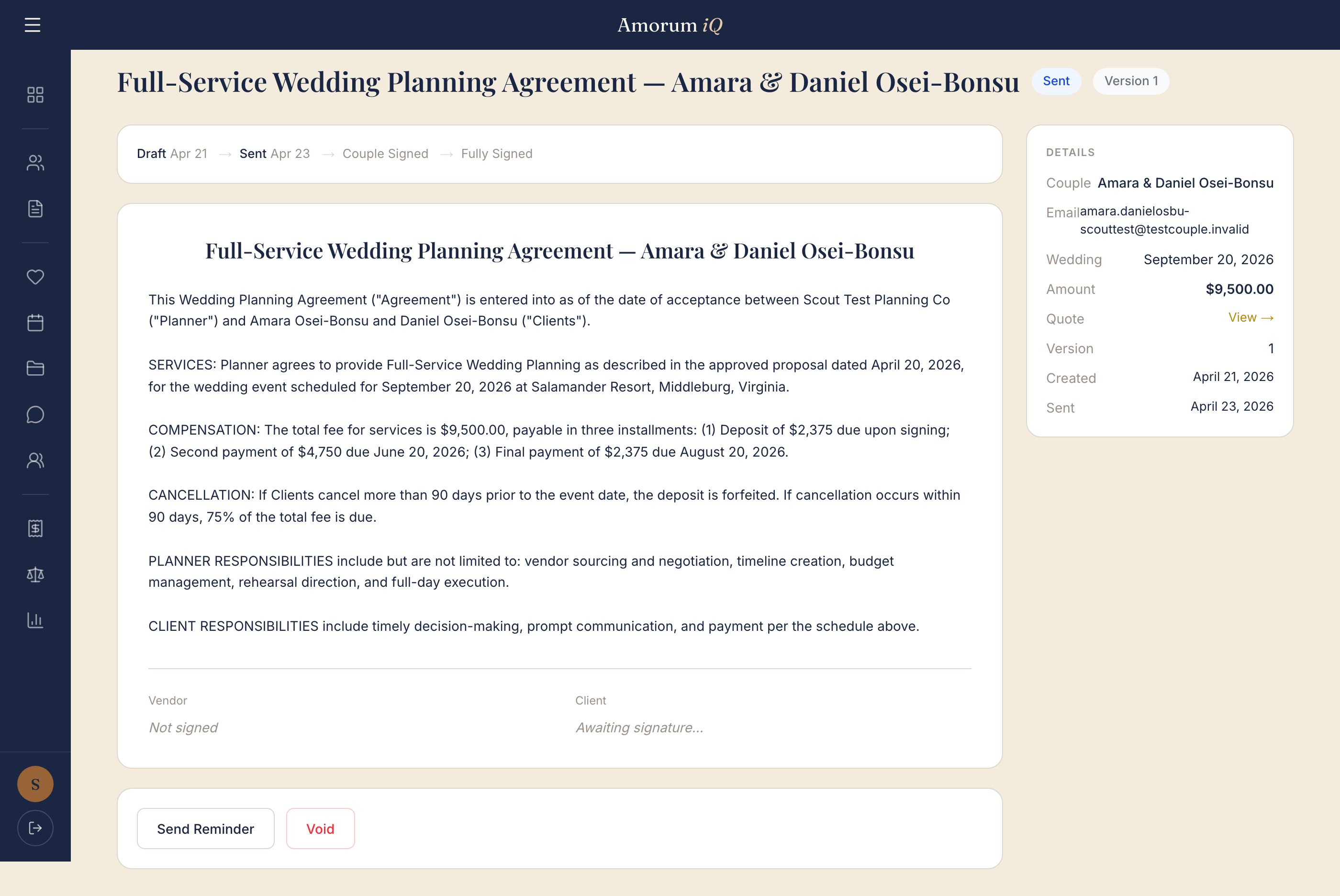
Send digital contracts through a legally binding e-signature process under the U.S. ESIGN Act and UETA — you set the terms, Amorum provides the signing tool. Each contract includes a 3-day cancellation notice and a dual-checkbox e-signature consent. After both parties sign, Amorum auto-generates a sealed PDF with a Certificate of Completion (signer IP, timestamp, document hash) and emails it to both you and the couple. Set up payment schedules with deposit, midpoint, and final balance — with automatic reminders. Add addenda for scope changes after signing. Contracts are stored for 7 years.
Shared Documents
Upload and share files with your couples — mood boards, shot lists, timelines, venue maps. Use the Documents tab to upload files and assign them to a specific couple. Use the Questionnaires tab to build reusable forms (text, multiple choice, yes/no, dates) and send them to couples to collect wedding details like song requests, dietary restrictions, and timeline preferences.
Messages
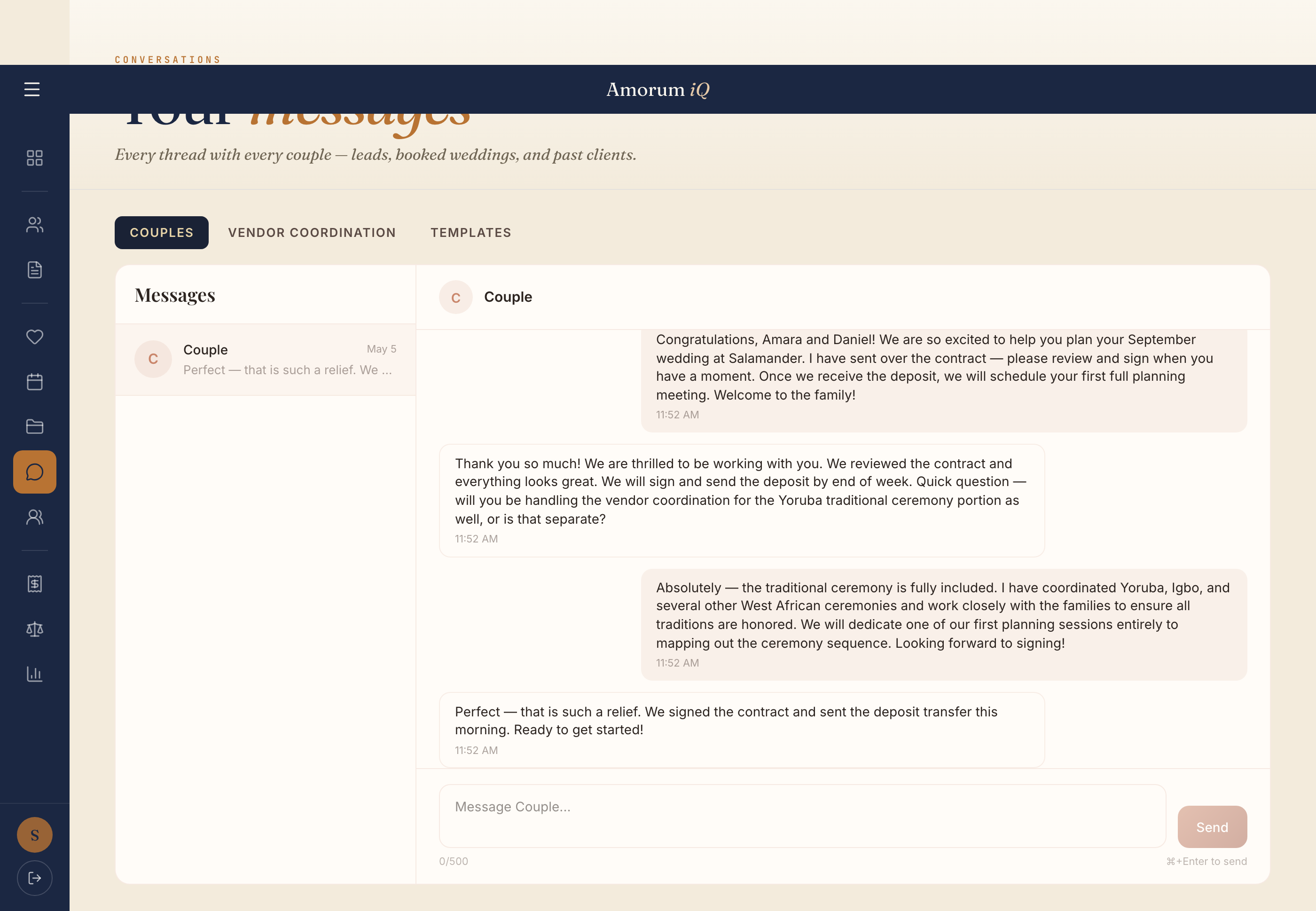
All your couple conversations in one place. Messaging unlocks once you connect with a couple. No more hunting through email — everything is tied to the wedding. Live in the Weddings section of your sidebar.
Leads Pipeline
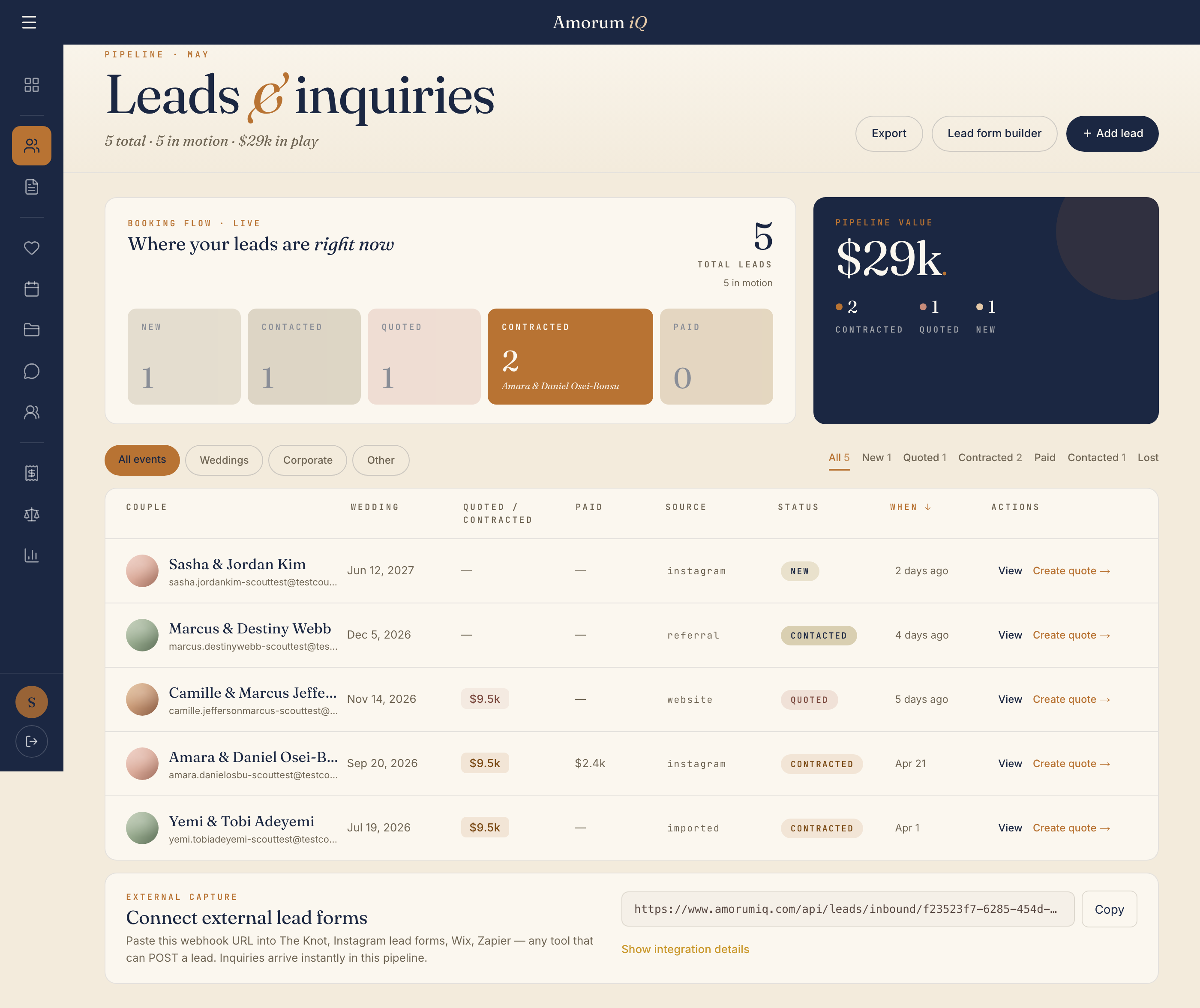
Track every couple who has reached out, even before they request a quote. Update lead status (new, contacted, quoted, booked, lost), add notes, and see your conversion rate. Your dashboard pulls new lead alerts from this page automatically. Sort the table by any column — wedding date, source, status, amount.
Referrals
Track word-of-mouth referrals from past clients. Add a referral with referrer info and the new couple they sent. Mark statuses as you progress. When a referral books, send the referrer a thank-you with one click — they’ll feel appreciated and refer more couples your way.
Refer a Vendor
Invite fellow wedding vendors to join Amorum. Share your unique referral code or link — when they sign up and subscribe, you earn a free month credit on your subscription. Track your referrals and credits earned in one place.
Invoices
Create and send professional invoices to couples for any payment outside the contract payment schedule. Track sent, viewed, and paid status.
Analytics
Track your business performance: revenue, expenses, profit per wedding, quote acceptance rate, and response time. Expand any wedding row to see the full financial breakdown.
Google Integration
Connect your Google account in Settings to enable Gmail integration (send emails on your behalf) and Calendar sync (your Amorum bookings appear on your Google Calendar). One-time connection, fully reversible.
Notification Preferences
Control which emails you receive from Settings. Toggle notifications for quote views, approvals, expiring quotes, signed contracts, new inquiries, payments, and messages. All default to on.
Need Help?
Questions, feedback, or ideas? Email hello@amorumiq.com directly. We respond fast and we love hearing from vendors.
Tips for Success
- *Respond within 24 hours — couples are comparing you in real time
- *Add a personal note to every quote — it’s your biggest differentiator
- *Keep your availability up to date and turn on sharing when ready
- *Use templates to send quotes faster
- *Follow up on viewed-but-not-approved quotes after 3 days
- *Set up your deposit terms upfront so couples know what to expect
- *Share your lead intake form on your website and social media
- *Customize your follow-up sequences for a personal touch
- *Upload your logo — it appears on all emails and your inquiry form